End-User Installation
Get XY Browser Agent installed and ready to transform your web interactions with AI-powered automation in just a few minutes.
Watch the installation portion of this video (0:00-1:50) for a visual walkthrough of the installation process.
 What You'll Get
After installation, you'll be able to:
- Record workflows by simply performing actions on web pages
- Automate repetitive tasks with intelligent execution
- Extract data from websites automatically
- Share workflows with your team
- Save hours of manual work every week
 Prerequisites
Before installing the extension, you must:
- Create an XY account - Sign up or log in at app.xy.ai
- Be signed in to your XY dashboard
Download and Install the Extension
Once you're signed in to your XY account, follow these steps to install the Chrome extension.
Step 1: Download from Your Dashboard
There are two ways to download the Browser Agent extension:
Path 1: Home Screen Recommendations
- Sign in to your XY account at app.xy.ai
- Look for the recommendations card on your home screen
- Click "Install browser agent" button on the recommendations card
- It will take you to the Browser Agents section (below)
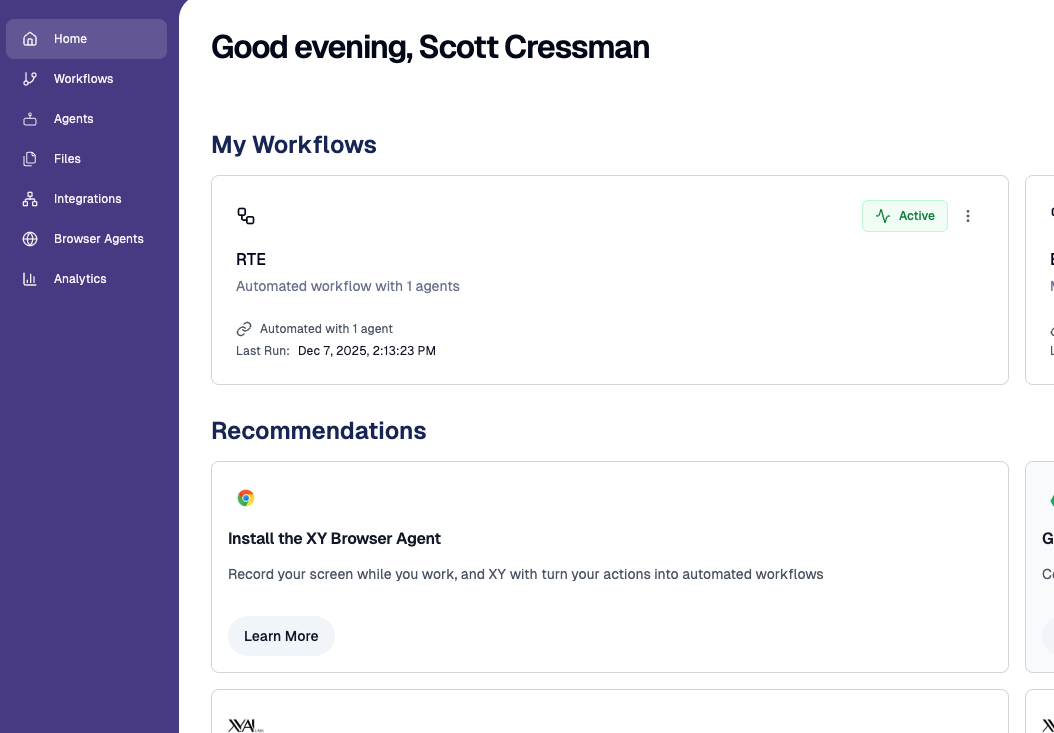 The recommendations card on the home screen shows the "Install browser agent" option
Path 2: Browser Agents Section
- Sign in to your XY account at app.xy.ai
- Navigate to Browser Agents in the sidebar
- Click the "Install" tab
- Click "Download XY Browser Agent" button
- Save the extension file (zip file) to your computer
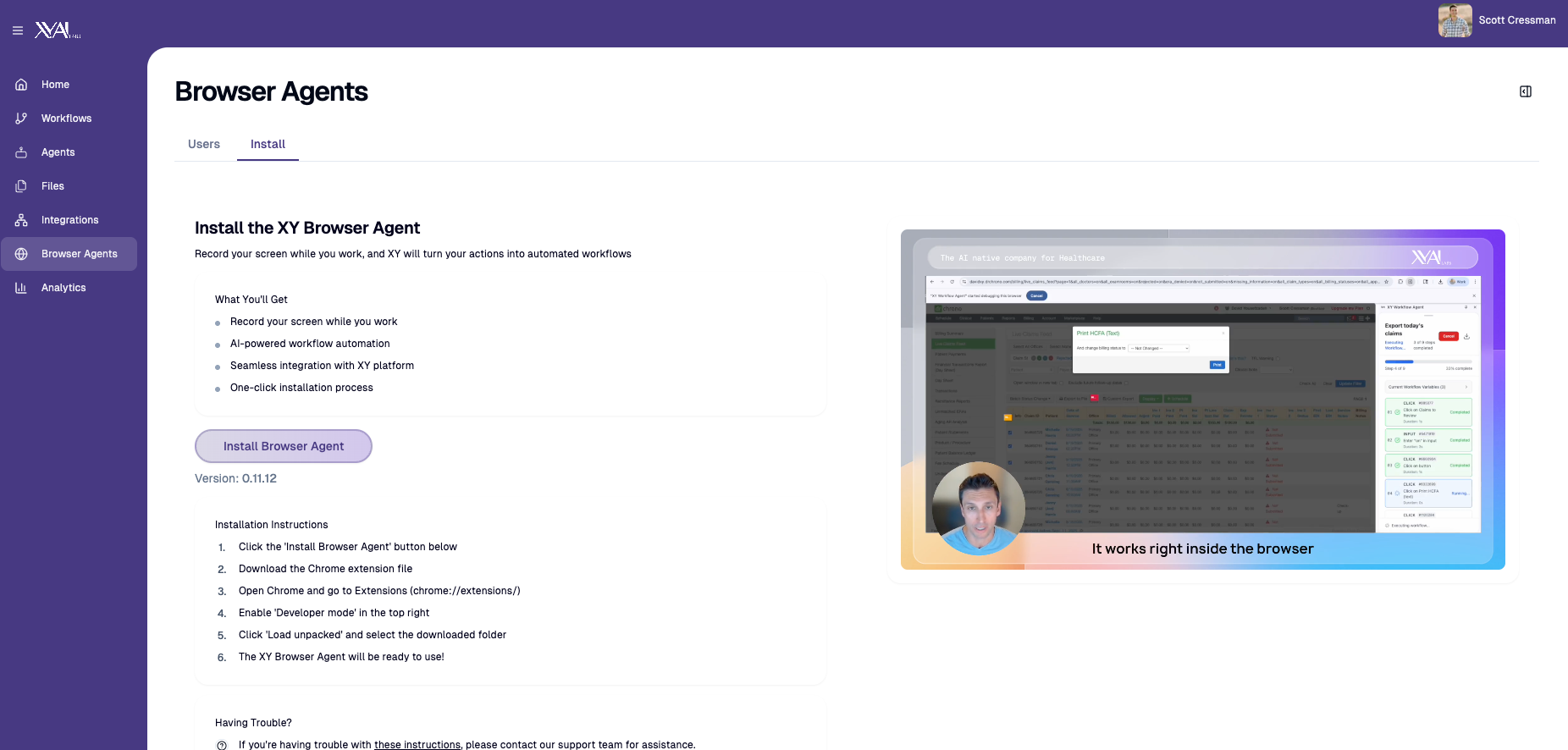 Download the Browser Agent from the Browser Agents → Install tab
Both installation paths provide the latest stable version of the extension. The version number is displayed after installation to confirm you have the latest version.
Step 2: Prepare the Extension Files
-
Locate your download:
- Find the downloaded zip file (the exact name may vary)
- Usually in your Downloads folder
-
Extract the extension:
- Go to Downloads folder
- Right-click the ZIP file and select "Extract All" (Windows) or double-click (Mac)
- Extract contents to a folder named
XY workflow agent(or similar) - Ensure the folder contains a
manifest.jsonfile
Step 3: Enable Developer Mode in Chrome
-
Open Chrome Extensions:
- Type
chrome://extensions/in your address bar and press Enter - Or go to Chrome menu ⋮ → More tools → Extensions
- Type
-
Enable Developer Mode:
- Look for the Developer mode toggle in the top-right corner
- Click to enable it (the toggle should turn blue/green)
 Enable Developer Mode to install extensions from local files
Developer mode allows you to install extensions from local files, not just the Chrome Web Store.
Step 4: Install the Extension
-
Load unpacked extension:
- Click the Load unpacked button (appears after enabling Developer mode)
- Navigate to and select the
XY workflow agentfolder (the folder you extracted) - Click Select Folder
The Load unpacked button appears after Developer Mode is enabled. Select the folder containing the extension files.
-
Confirm installation:
- XY Browser Agent should now appear in your extensions list
- You should see the XY Browser Agent card with version information
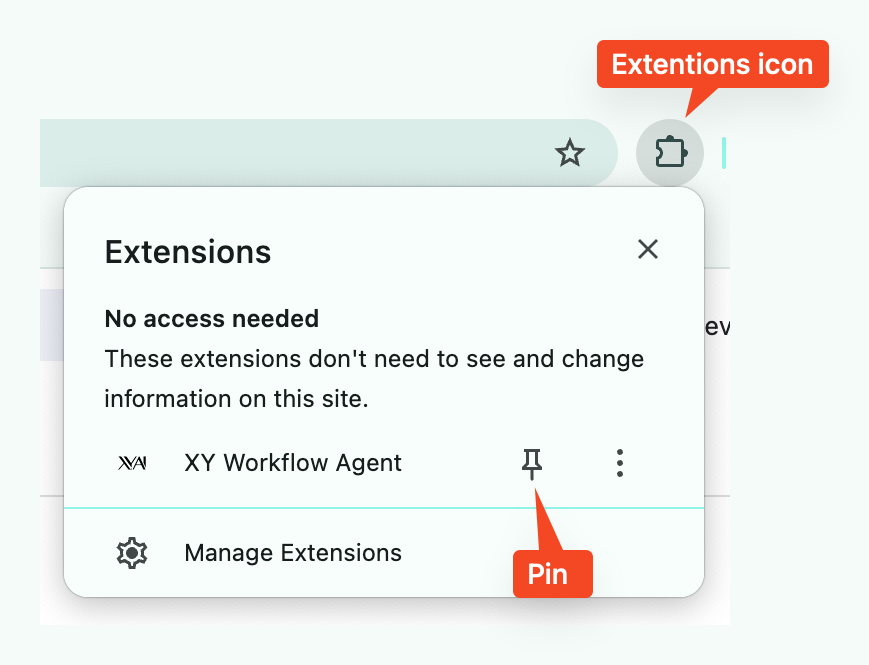
- Check the toolbar: Look for the XY Browser Agent icon (
 ) in your Chrome toolbar
 - If you don't see it, click the extensions puzzle piece icon
- Click the pin icon next to XY Browser Agent to pin it to your toolbar for easy access
-
Connect to your account:
-
Click the XY Browser Agent icon in your toolbar
-
The extension opens in the right sidebar - you'll see the login screen
-
Click "Sign in" button
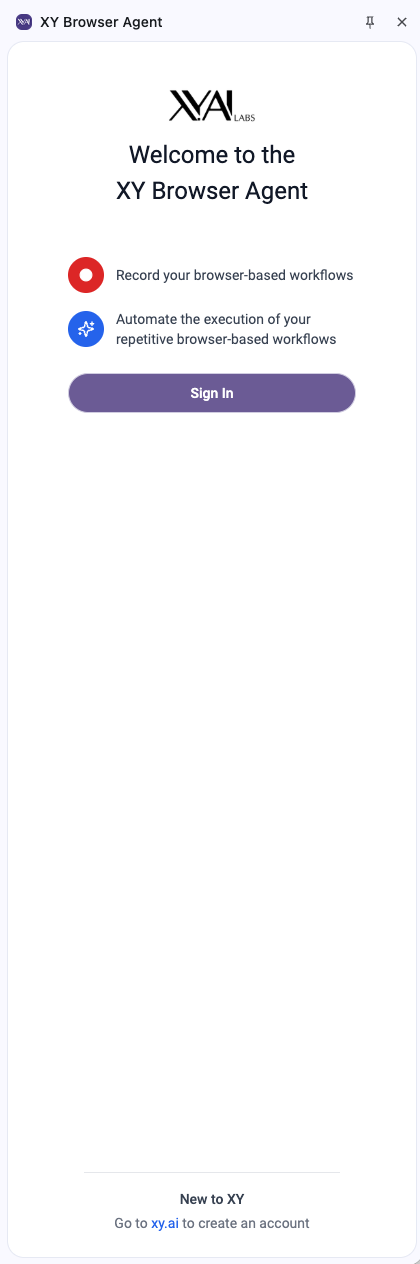 Sign in to connect the extension to your XY account
 -
Automatic sign-in: If you're already signed into the XY web app in the same browser, you'll be automatically signed in to the extension
-
Manual sign-in: If not automatically signed in, enter your credentials
-
After successful login, you'll arrive at the XY Browser Agent home screen
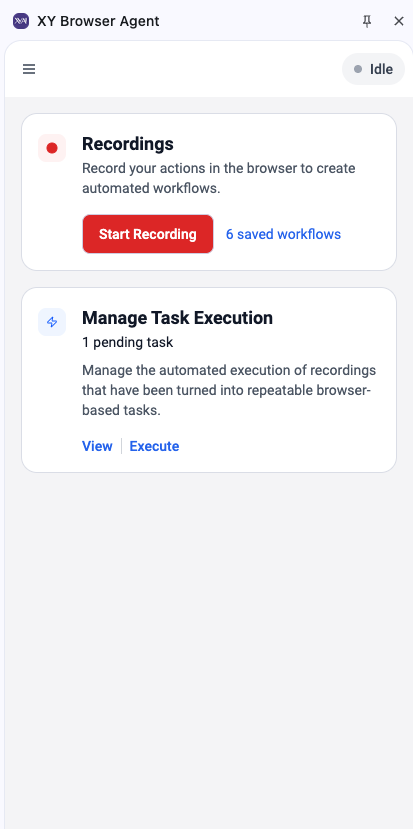 After signing in, you'll see the Browser Agent home screen with options to start recording, manage task execution, and access menu items
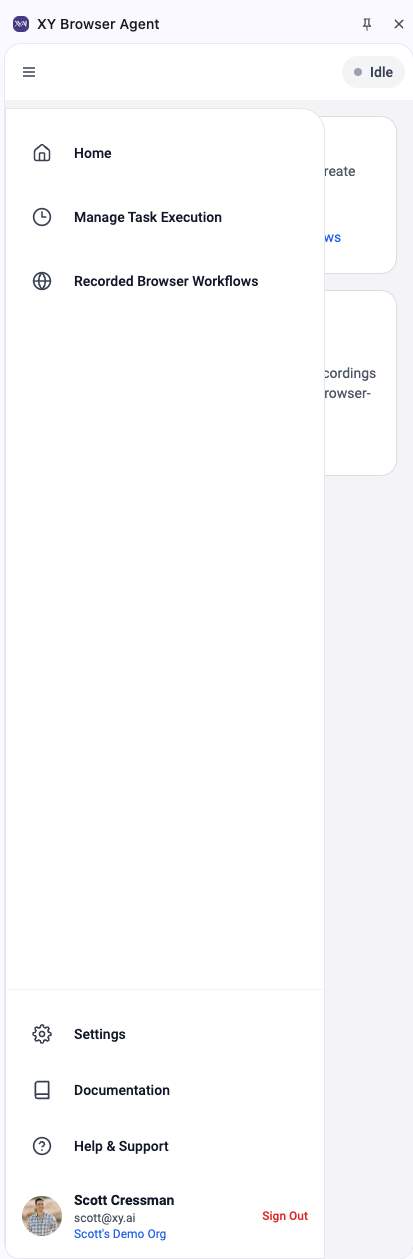 Access additional features through the extension menuAutomatic Authentication
If you're already signed into the XY web app where you downloaded the browser agent, the extension will automatically sign you in. Otherwise, simply sign in through the extension interface.
-
Step 5: Verify Installation
-
Verify permissions:
- The extension should have all necessary permissions enabled
- If prompted, click "Allow" for any permission requests
-
Test the extension:
- You should be able to see the Browser Agent home screen
- Options to start recording, manage task execution, and access menu items should be visible
- The extension is ready to use!
 Browser Permissions
XY Browser Agent requires specific permissions to automate your web interactions securely:
Required Permissions
| Permission | Purpose | Why It's Needed |
|---|---|---|
| Active Tab | Read and interact with current webpage | Record your actions and replay workflows |
| Storage | Save workflows and preferences | Remember your automations and settings |
| Scripting | Execute automated actions | Perform clicks, form fills, and navigation |
| All URLs | Work on any website | Support automation across different sites |
 Privacy & Security
- No data collection: XY Browser Agent doesn't track or collect your personal data
- Local processing: Workflows are stored locally and in your secure cloud account
- Permissions on-demand: Extension only activates when you're actively using it
- Open source: Code is available for security review
Managing Permissions
To review permissions:
- Go to
chrome://extensions/ - Find XY Browser Agent and click Details
- Review Site permissions section
To modify permissions:
- Right-click the extension icon
- Select This can read and change site data
- Choose your preferred option:
- On all sites (recommended for full functionality)
- On specific sites (for limited use)
- When you click the extension (most restrictive)
Troubleshooting Installation
 Extension Not Appearing
Problem: Extension doesn't show up after installation
Solutions:
- Refresh extensions page: Go to
chrome://extensions/and press F5 - Verify Developer mode: Ensure the toggle is enabled (blue/green)
- Check for errors: Look for red error messages in the extension card
- Retry installation: Remove and re-add the extension
Still not working?
- Make sure you selected the correct folder (should contain
manifest.json) - Try restarting Chrome completely
 Permission Issues
Problem: "Extension requests additional permissions" or similar errors
Solutions:
- Accept all permissions: Click "Accept" when prompted
- Manual permission setup:
- Right-click the extension icon
- Select This can read and change site data
- Choose On all sites
- Check site-specific permissions: Some sites may require individual approval
 Chrome Version Issues
Problem: Extension won't install due to version compatibility
Minimum requirements: Chrome 88 or higher (released January 2021)
Check your version:
- Go to
chrome://settings/help - Chrome will automatically check for updates
- Restart Chrome after updating
Your version is too old?
- Update Chrome to the latest version
- If you can't update, some features may not work
 Loading Errors
Problem: "Failed to load extension" or similar errors
Common causes and fixes:
| Error Message | Cause | Solution |
|---|---|---|
| "Manifest file is missing" | Wrong folder selected | Select folder containing manifest.json |
| "Invalid manifest" | Corrupted download | Re-download and extract again |
| "Extension is not from Web Store" | Security warning | Click "Load anyway" in developer mode |
 System-Specific Issues
Windows Users:
- Make sure file extensions are visible
- Some antivirus software may block extension files
Mac Users:
- If download is blocked, go to Security & Privacy settings
- Allow downloads from identified developers
Linux Users:
- Ensure you have proper file permissions
- Chrome may be installed as Snap - check extension directory access
 Welcome to XY Browser Agent!
You're now ready to transform how you interact with the web. From simple task automation to complex data workflows, XY Browser Agent will save you hours every week.
Ready to get started? → Create your first workflow 
If you're reinstalling or adding the extension to another device, just sign in to your existing account at app.xy.ai to download the extension again.